Proctored ExamsDistance Learning
Proctored Exams
Distance Learning
Some Midland College online courses require students to take exams or quizzes in a proctored environment. A proctored exam is a supervised test where an instructor, testing center, or approved proctor monitors the student to ensure all exam rules and requirements are followed.
Proctoring requirements vary by course. Students should always review their course syllabus or contact their instructor directly to confirm which proctoring options are available.
This page is dedicated for current Midland College Students. If you are not a Midland College student and need an outside exam proctored, please contact the Midland College Testing Center.
Online Proctoring Options
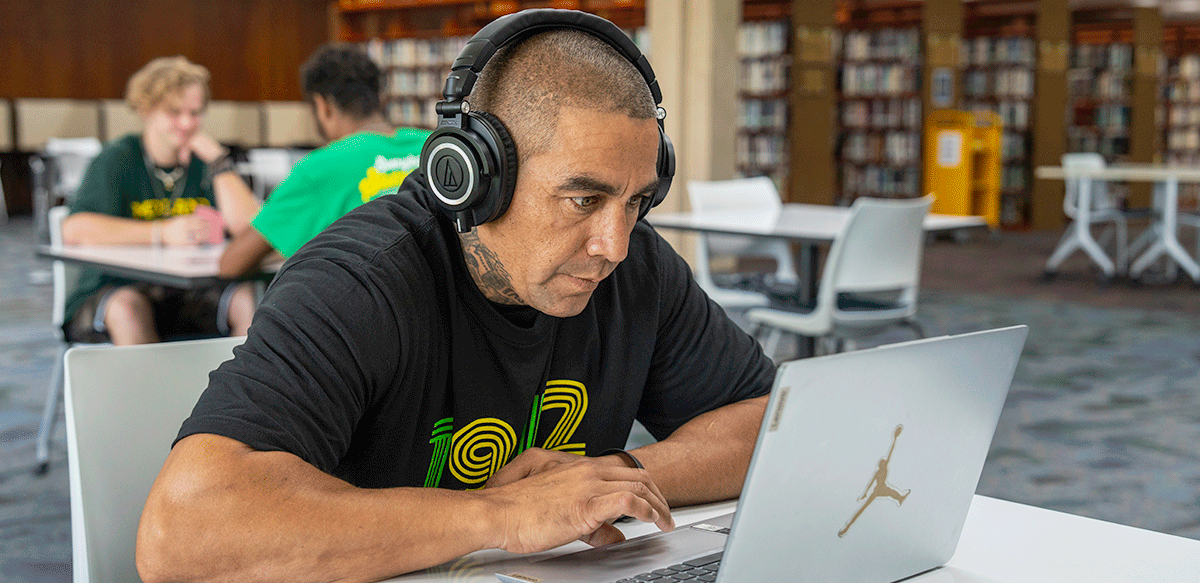
Online proctoring allows students to take an exam remotely, usually from home or another approved location. These options require a reliable internet connection and may require a webcam. If you need help getting set up or need a reliable computer, you may take your test at any computer in the Learning Resource Center.
Select links below for details
LockDown Browser
FREE FOR MC STUDENTS
The Respondus LockDown Browser is a software program, integrated in Canvas, that locks down the testing environment for students. Some instructors use it to lock the browser and prevent students from visiting other web pages, print, etc. while taking a test.
HOW TO SET-UP
Watch the video below to learn how to set-up the LockDown Browser on your personal device.
STEPS TO ACTIVATE THE LOCKDOWN BROWSER
-
- Download the software using the link below. This link provides the connection to the
Midland College account. This software is free to students.
LockDown Browser Software - Install the software on your computer.
- Before launching the new browser, close all other open application on your computer
or iPad.
- Go to the desktop/launchpad and select the LockDown Browser icon.
- Login to Canvas.
- Navigate to the course to take your quiz.
- Download the software using the link below. This link provides the connection to the
Midland College account. This software is free to students.
INSTALLING THE Chromebook LOCKDOWN BROWSER EXTENSION
To install the new extension to a Chromebook, use the Download Respondus LockDown Browser link in your quiz, or download using the link below:
LockDown Browser Extension Download
The LockDown Browser installation link will direct you to the Chrome web store, at which point you should select “Add to Chrome” to install the LockDown Browser Extension (you will NOT be able to search for the app directly from the Chrome web store).
LOCKDOWN BROWSER TIPS & TRICKS
Using an iPad?
To use LDB with the iPad app, the instructor must activate that setting in Canvas. Contact your instructor if you have questions about using an iPad.
Install in Advance
It is HIGHLY recommended that students download & install the software well in advance of taking the first quiz/test requiring it.
Do Not Pay for LockDown Browser software
Students must use the link above (or the link provided in the Canvas course) to install the correct version/connection to Midland College. This software download is FREE to MC students. If a student is being asked to pay, they are not using the correct link.
Monitor
Respondus Monitor is an add-on feature to the LockDown Browser an instructor may use to proctor online exams. Students are required to have a web cam if the instructor enables this option.
SET-UP
-
- Open the LockDown browser
- Navigate to the quiz in Canvas
- Select the button to start the quiz
- Work through the webcam set-up steps
Need Help?
ONLINE DOCUMENTATION
Visit the Respondus Student Resources page for helpful videos, support FAQs, live chat, etc.
ASK FOR HELP
Submit a Canvas Help ticket and we will take a look!
For instructions on how to submit a Canvas Help ticket, visit our Canvas Student Help & Training page.
Online proctoring which requires the use of a webcam and reliable, high-speed Internet connection. Student is responsible for the fee associated with this proctoring option. Fee schedule based on length of test.
| Minutes | Cost |
|---|---|
| 0–30 | $8.75 |
| 31–60 | $17.50 |
| 61–120 | $25.00 |
| 121–180 | $33.75 |
| 181 & up | $42.50 |
In-Person Proctoring Options
In-person proctoring allows students to take an exam at an approved physical location where a proctor supervises the test.
Select Links Below for Details
Located in the Learning Resource Center at Midland College, students enrolled in a MC Class can take their exams and quizzes in a proctor environment. Appointments and instructor approval are required to schedule a proctored exam. There is no fee for this service.
Midland College students are welcome to utilize the WRTTC Testing Center, located in Fort Stockton, TX, to take their proctored test. Appointments and instructor approval are required to schedule a proctored exam. There is no fee for this service.
If you are unable to test on campus, you could test at a testing center local to you. This could be at a college, university, or testing center. Your instructor must approve of the location prior to test administration. The student is responsible for any fee associated with this proctoring option.
Your instructor must approve prior to test administration if the student has an individual proctor outside of a traditional testing center. The student is responsible for any fee associated with this proctoring option.
Apply to MC Now
Thank you for choosing Midland College! If you are here to collect a few credits, take courses to transfer, or here to start a new career, we welcome you.